Photo2PPT for Android: Turn Photos of Slides into Editable PowerPoint
6 minutes read
You’re in a talk, a lecture or a meeting, and the slide on the screen is the one you want to keep. A phone photo is quick to take but awkward to use: it’s skewed, it has the room around it, and you can’t edit a word of it.
Photo2PPT is our Android app for exactly this moment. It photographs slides, crops and straightens them, keeps them together as decks, and turns them into a real .pptx with editable text boxes, tables and charts, using the same engine as
ppt.gptsci.com
.
This guide walks through the app from installation to sharing the finished PowerPoint. All screenshots are from the Android app.
Install the app
Photo2PPT is installed from an APK file, not from the Play Store:
- On your phone, download photo2ppt-1.0.0.apk (about 10 MB).
- Open the downloaded file. The first time, Android asks you to allow installs from the app you downloaded it with (Chrome, Files, or your messaging app). Allow it, then tap Install.
- If Google Play Protect says the app is unknown, tap Install anyway.
The download above works on almost every phone from the last several years. If Android reports “App not installed” on an older phone, use the 32-bit version instead.
The app itself needs no account. You only sign in, with your Edit in PPT account, when you convert slides to PowerPoint.
Step 1: Scan your slides
Tap Scan slides on the home screen. On most phones this opens Google’s document scanner, where you can:
- Take photos with the camera. Auto capture takes the picture as soon as the slide is steady in view; switch to Manual if you’d rather press the shutter yourself.
- Import from gallery to use photos you’ve already taken. Pick several at once and they become slides in the order you tap them.
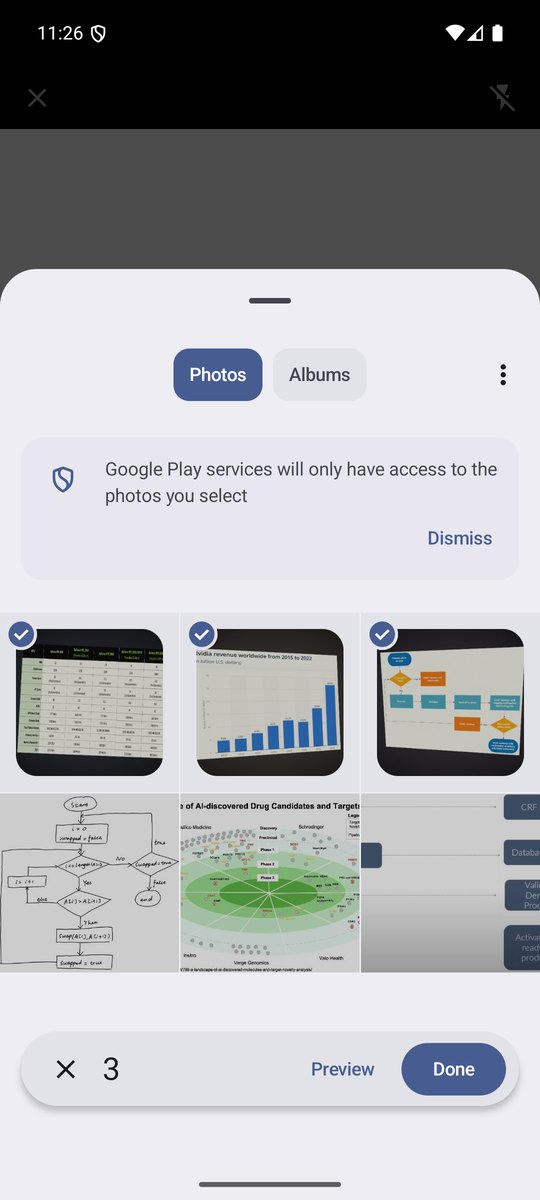
Each photo is cropped to the slide and straightened automatically, so a slide shot from the side of the room comes out as a flat rectangle. Before you save, you can check every page, apply a filter, adjust the crop, retake or delete a photo, or add more pages.
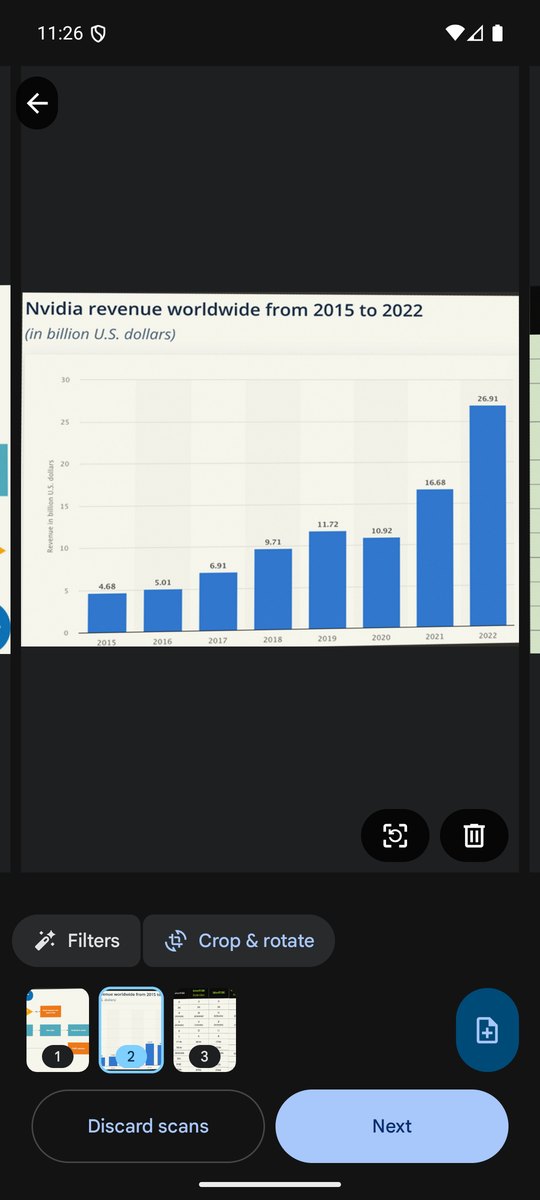
Tap Next, and the slides are saved as a new deck.
No Google Play services on your phone? Many phones sold in mainland China don’t have them. Photo2PPT then uses your phone’s own camera and photo picker, and finds and straightens the slide itself. You’ll be asked whether to Take photos or Import from Photos, with an Auto-detect & crop switch. Turn it off to drag the four corners yourself.
Step 2: Organize the deck
A deck is one set of slides, like one talk. It opens right after scanning:
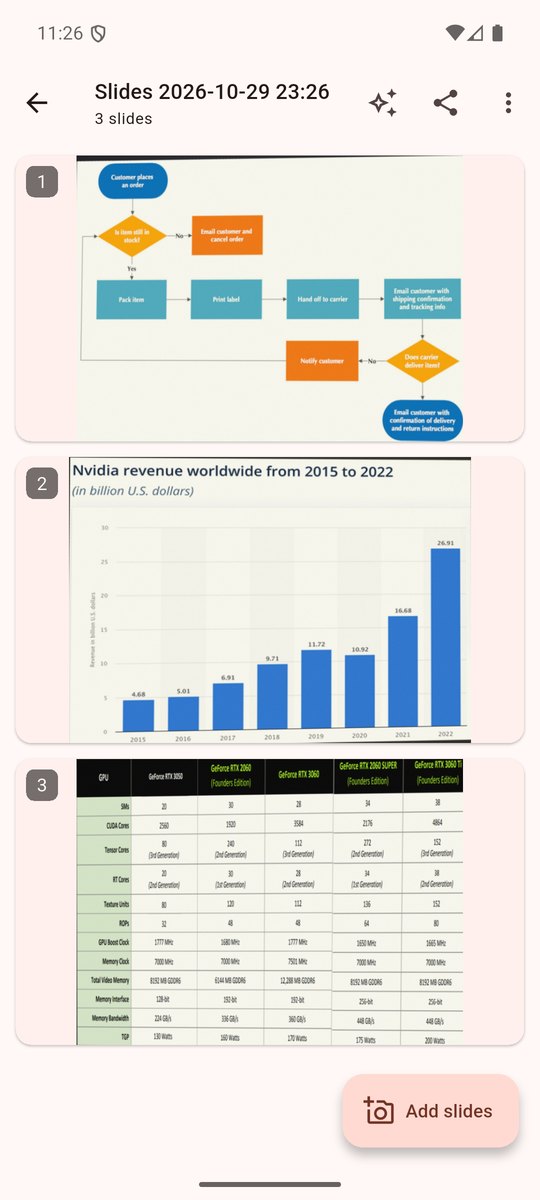
- Rename it: tap the title at the top. New decks are named by date and time, like “Slides 2026-10-29 23:26”.
- Reorder slides: press and hold a slide, then drag it to its new place.
- Add slides: tap Add slides to scan more pages into the same deck.
- Share the photos: the share button sends the cleaned-up images to any app.
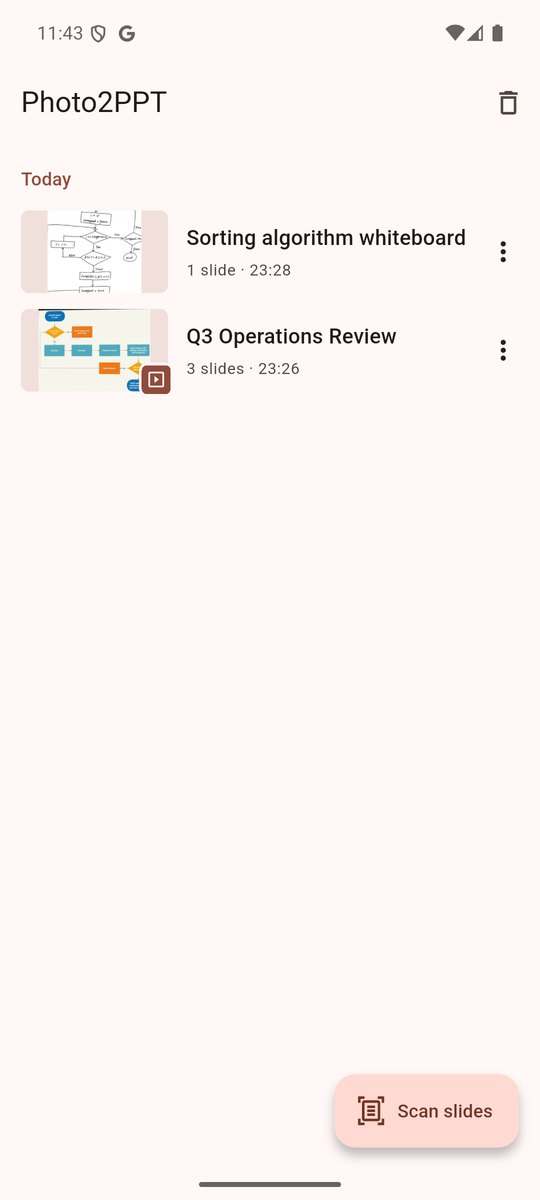
Every deck is kept on your phone and listed on the home screen, grouped by day. A small PowerPoint badge marks the decks you’ve already converted.
Step 3: Touch up a slide
Tap a slide to open it full screen, and pinch to zoom in.
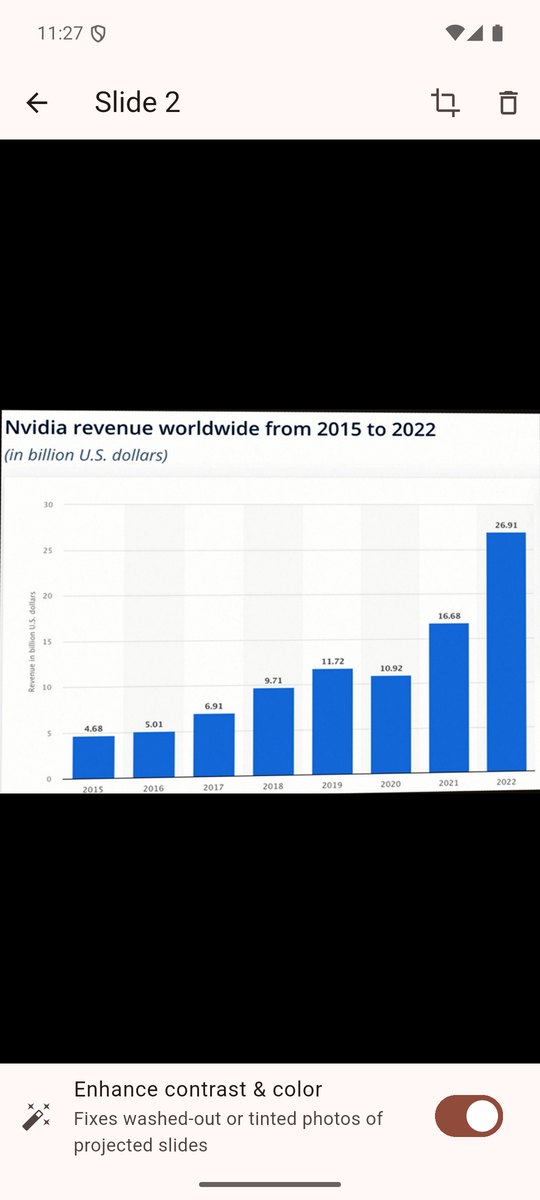
- Enhance contrast & color fixes the washed-out, bluish look that projectors and screens often give a photo. You can switch it back off at any time.
- Crop (the icon at the top) lets you drag the corners to fix the outline. Auto goes back to the detected outline, Full uses the whole photo, and Rotate turns it 90°.
- Delete moves the slide to the Trash (see below).
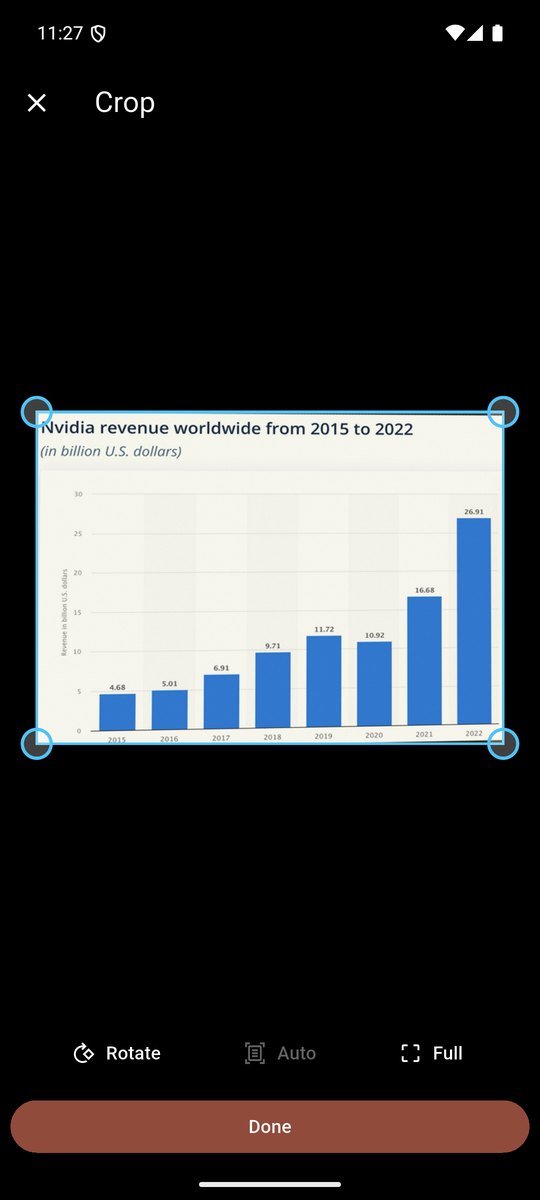
A cleaner photo gives a better PowerPoint, so it’s worth a quick look at any slide that was shot at a sharp angle or under glare.
Step 4: Convert to PowerPoint
Open a deck and tap the sparkle icon, Convert to PowerPoint. The conversion runs on Edit in PPT, inside the app:
-
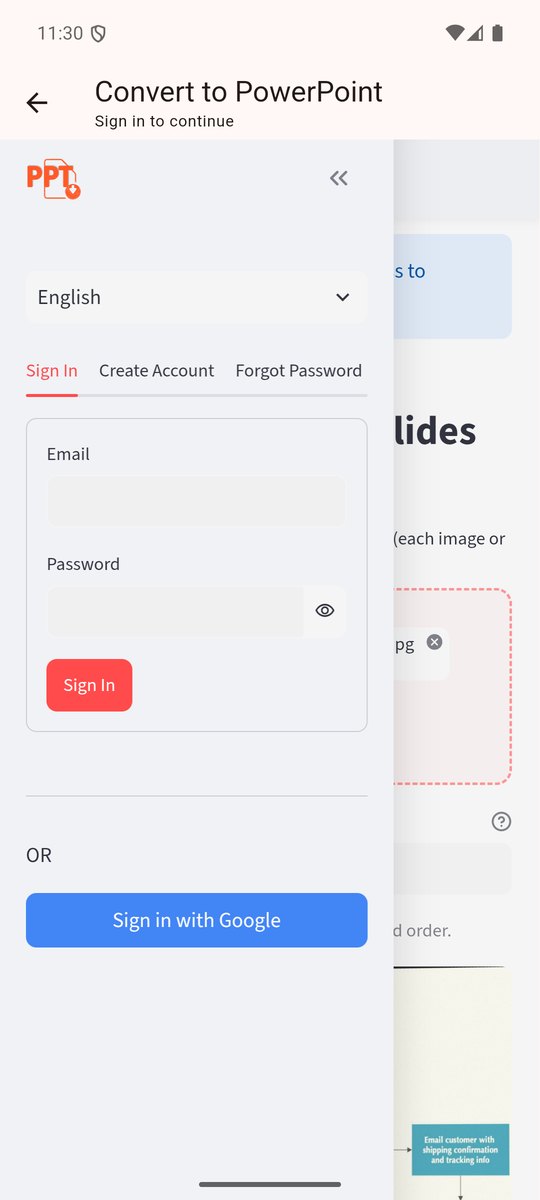
Sign in the first time, with your email and password or with Sign in with Google. New accounts get 5 free credits every month.
-
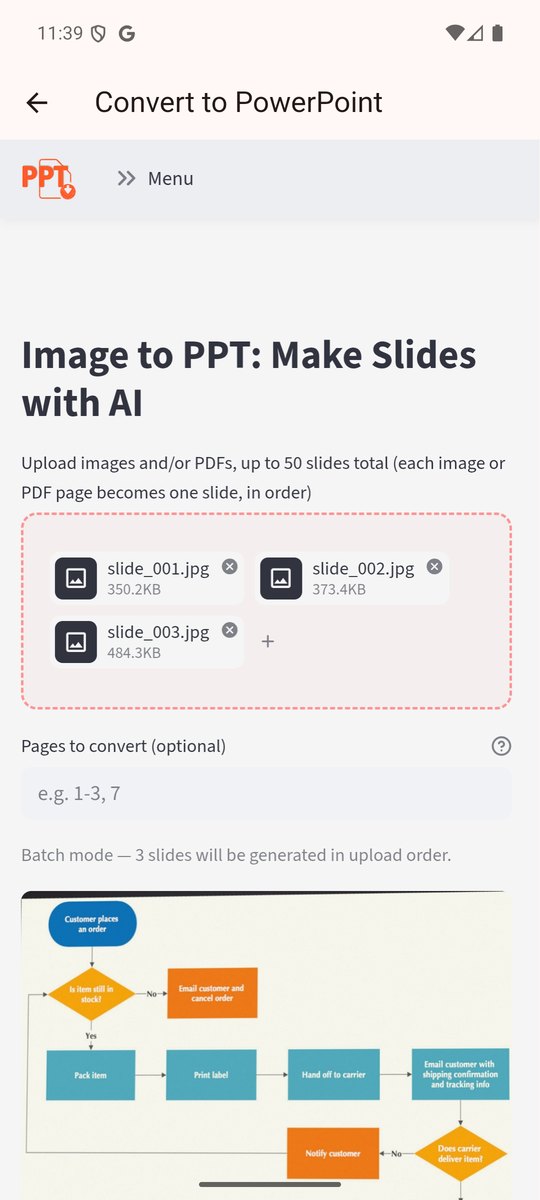
Your slides are already uploaded. The deck’s slides appear in the uploader in order; there’s nothing to pick.
-
Choose a model and tap Create PowerPoint Slides:
Model Cost per slide Best for Standard 1 credit Most slides: text, tables, simple charts Pro 3 credits Dense or detailed slides Max 5 credits Custom graphics and complex diagrams -
Wait a minute or so while each slide is rebuilt. You can watch the progress, or leave: the job keeps running, and opening Convert again picks up the result.
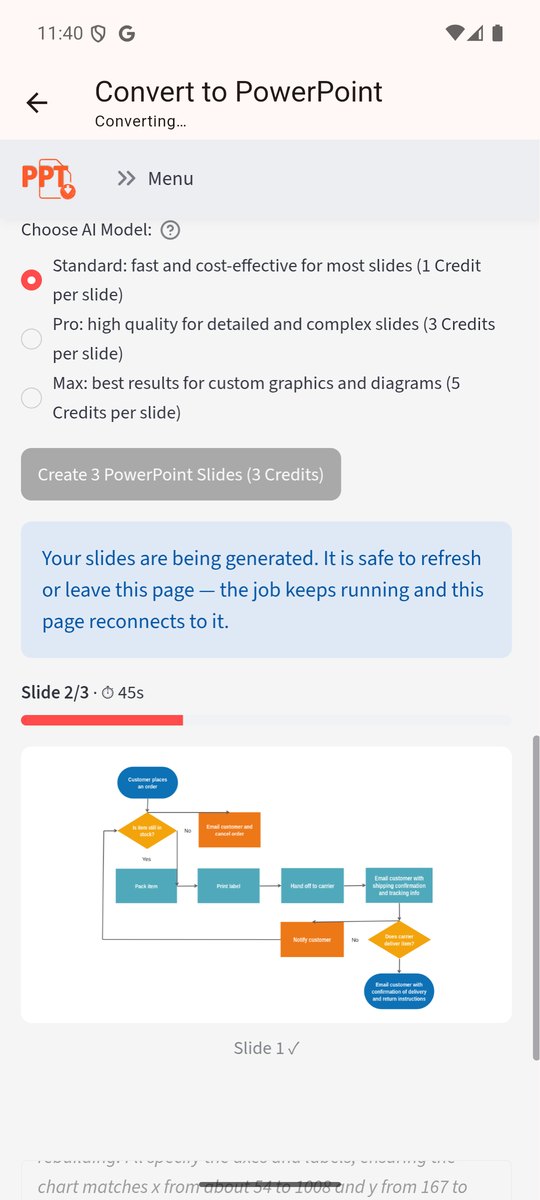
When the job finishes, the PowerPoint is saved to the deck and opens by itself:
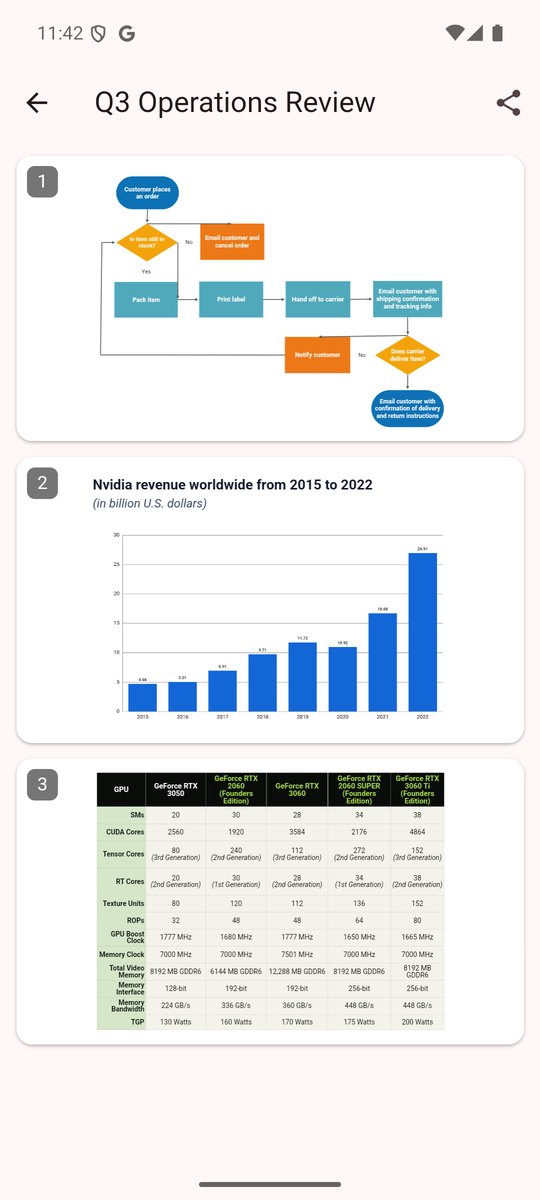
The preview draws the actual .pptx on your phone, so it works offline and shows exactly what you’ll get. Back in the deck, a new toolbar button switches between your photos and the PowerPoint’s slides.
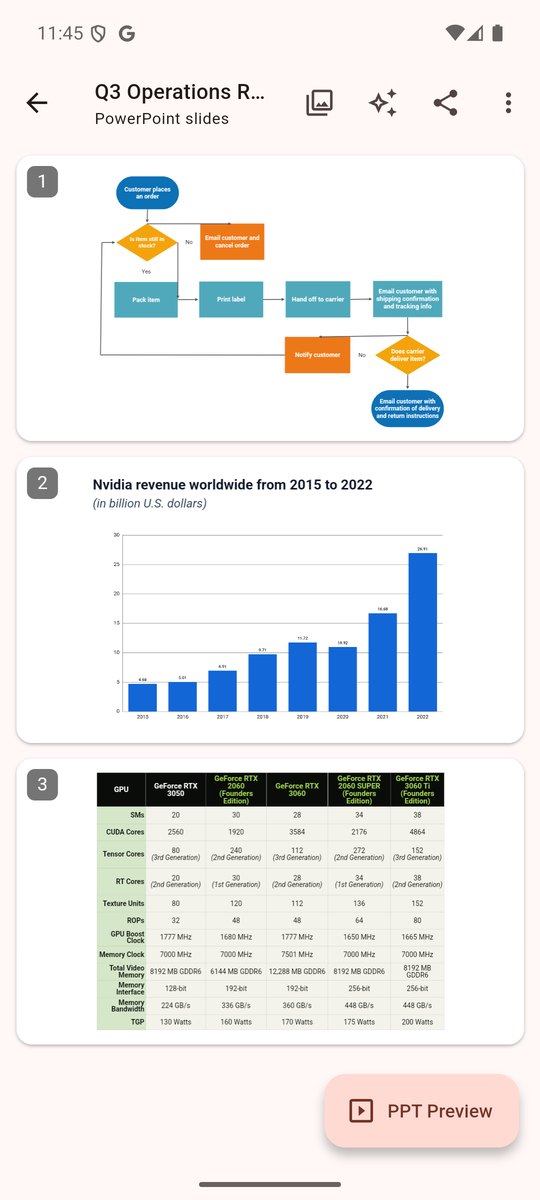
Only need some of the slides? In the deck’s menu, choose Select slides to convert, tick the ones you want, and tap Convert. You only pay for the slides you convert.
Step 5: Share and edit the PowerPoint
Tap the share button on the preview, or Share PowerPoint in the deck’s menu. The file is named after your deck, so it arrives as “Q3 Operations Review.pptx”, not a random file name.
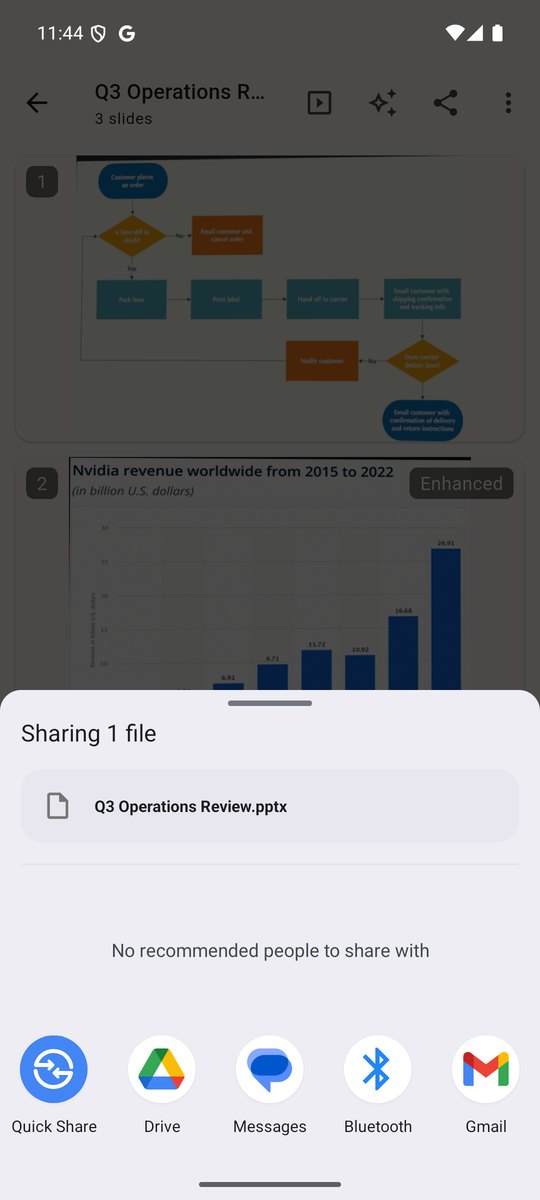
Send it to yourself by email or Drive, or open it directly in PowerPoint, Google Slides or WPS Office on your phone. Every title, label, table cell and chart is a real, editable object, not a picture of one, so fixing a typo or updating a number takes seconds.
The Trash: deleted slides wait 30 days
Deleting a slide or a whole deck doesn’t erase it right away. It goes to the Trash, which you open from the bin icon on the home screen.

- Restore puts the slides back where they were, in their original deck and position, together with the deck’s PowerPoint.
- Delete for good removes an item immediately, and Empty clears the whole Trash.
- Anything left in the Trash is deleted automatically after 30 days.
Tips for better results
- Fill the frame with the slide and keep the phone level with the screen. Straightening fixes angles, but more pixels on the slide means sharper text.
- Avoid glare. If a light reflects on the screen, take the photo from a slightly different position.
- Use Enhance on photos of projected slides before converting.
- Start with Standard. It handles most slides well. Use Pro or Max for a slide with dense small print or a complicated diagram.
Your photos stay on your phone
Scanning, cropping, enhancing and previewing all happen on the phone. Slides leave it only when you tap Convert, and then only the slides you’re converting. Your decks, photos and PowerPoints are stored in the app, not in the cloud.
Try it
Download Photo2PPT for Android , photograph the next slide you want to keep, and turn it into a PowerPoint you can actually edit.